Can you convert 8-bit video to 10-bit?
What changes, what stays missing, and how to judge a short preview under your grade.
More encoding precision is not more captured dynamic range.
By RGBA
Yes, you can convert an 8-bit video into a 10-bit file. That gives the output a higher-precision encoding, but it does not turn the original recording into native 10-bit capture. The distinction matters when you want smoother gradients under a grade: a new file format alone is not evidence that the picture improved.
The Library of Congress description of the ProRes 422 family explicitly includes using 8-bit sources in a 10-bit file. The practical question is whether your actual shot looks better through the edit, grade and final delivery.
What changes when you convert 8-bit video to 10-bit?
Bit depth describes the precision available to represent image samples. Higher precision can represent finer differences between nearby tones. It is separate from image dimensions: a 10-bit file is not automatically a higher-resolution image.
An ordinary transcode can put an 8-bit source into a 10-bit output. That can meet a workflow's format requirement, but the output label does not tell you whether visible banding has changed. Keep these three checks separate:
- File precision: Does the output have the intended bit depth and codec?
- Picture quality: Do gradients, shadows and fine details look acceptable under your intended grade?
- Delivery quality: Does the exported version still look acceptable on the screen where it will be seen?
ProRes 422 HQ supports 10-bit 4:2:2 video, as documented in Apple's ProRes white paper. That describes the format's capability, not a guarantee about information in any particular converted recording.
What does not come back?
A conversion cannot retroactively capture a highlight that the camera clipped or recover original detail that was discarded. More encoding precision is not more captured dynamic range. RGBA states these limits on its AI Video Enhancer page.
For a practical example, a bright window with no remaining visible texture should not become the basis for a promise of restored scenery. Judge the picture you can see. If a shot needs genuine highlight information that is absent from the recording, choose another take or adjust the creative treatment.
The same distinction applies to color sampling. A file labeled 4:2:2 does not prove that the camera originally recorded 4:2:2. Keep the source recording and its original format information alongside any working copy.
When a higher-precision workflow is useful
Before looking for an enhancer, check your editing project's color-depth settings. Adobe's color-depth tutorial explains that higher working precision can benefit effects even when the source or final output has lower precision. That is a reason to check the editing workflow; it is not proof that converting an existing clip repairs its source defects.
Start with the original file, apply the intended grade, and inspect the difficult areas. If the original already holds up, you may not need enhancement. If visible steps in gradients or distracting shadows interfere with the result, a short preview gives you something concrete to evaluate before committing a whole edit.
Avoid choosing a deliberately extreme grade just to make a comparison look dramatic. The useful test is the correction you would actually deliver.
Evaluate a short clip before a full project
Choose a 10–30 second section containing both the problem area and movement. Keep the original available in the same editing project as the preview.
- Use the same color-management interpretation and grade for both versions. Do not make one side brighter simply to make it appear better.
- Inspect smooth walls, skies or other gentle gradients at a useful viewing size. Look for visible steps rather than relying on the file's bit-depth label.
- Play the clip at normal speed. Check moving edges, fine texture and shadow detail as well as a paused frame.
- Export a representative delivery sample and review that file too. A result in the editing viewer is not the final deliverable.
- Keep the original if the preview does not improve the shot, or if any change distracts from it.
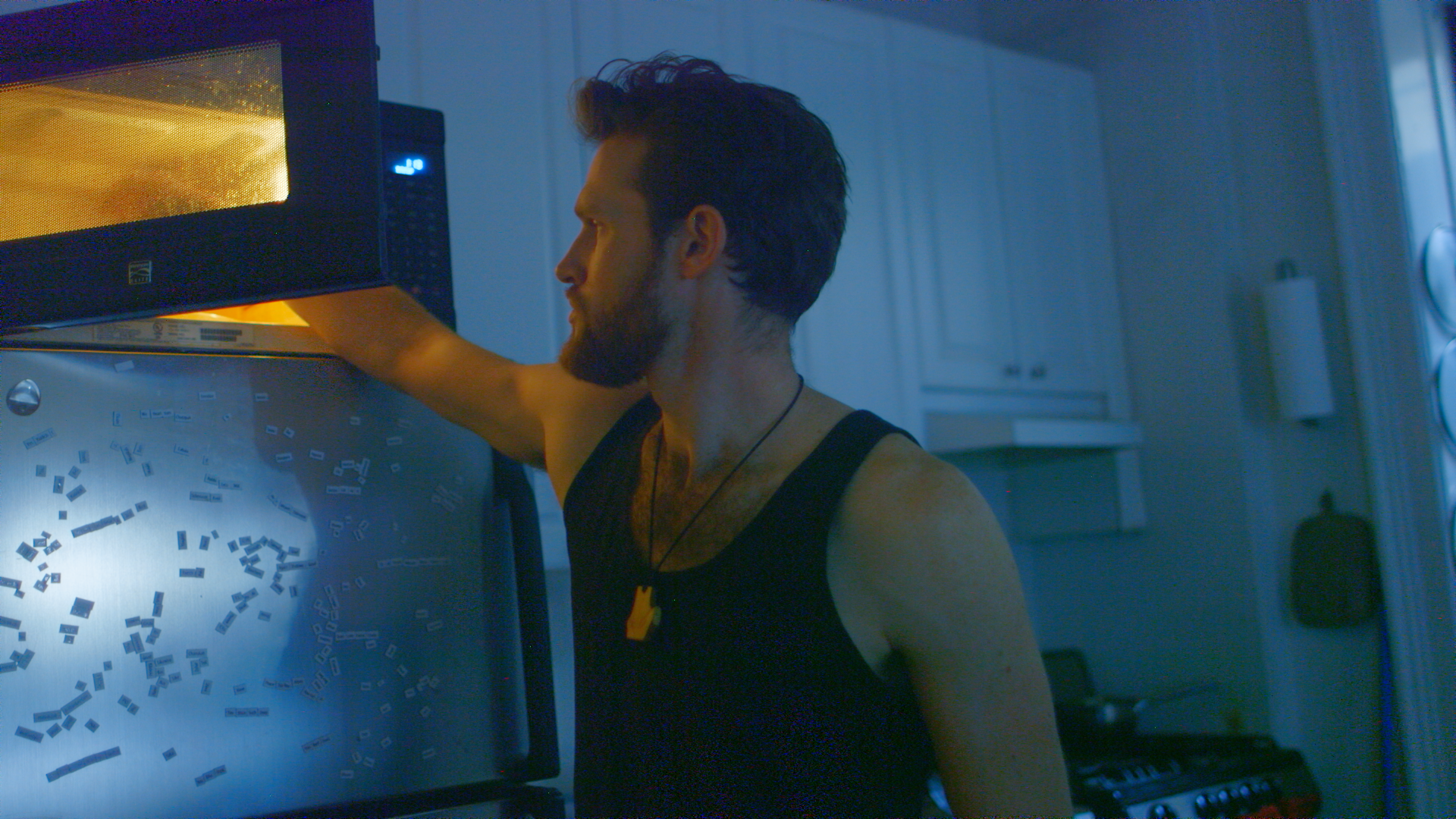
The hero above is the enhanced side of RGBA's existing Kitchen practical example: a person beside a refrigerator and a warm kitchen light. It is a single graded still, not a before/after proof. The product page's matched-grade comparisons let you inspect both sides. Results vary by source.
What RGBA currently offers
RGBA's published product specification lists supported 8-bit footage to 10-bit ProRes 422 HQ output. It also lists supported 10-bit footage to 12-bit ProRes 4444 output. The product is for footage you already have; keep your source color settings when evaluating the result.
Current limits are up to 4K / 60 fps, 12 GiB and 10 minutes, with progressive, constant-frame-rate input. Listed inputs include ProRes, H.264, H.265 and MPEG-2 in MOV, MP4 or MXF. RAW is unsupported. Final Cut Pro compatibility remains unverified, so test a free clip in your actual editor before relying on it.
Try a free preview with your RGBA account. Check your remaining allowance and the current limits before processing. Check the current limits and try a preview using a representative section under your intended grade. Keep your originals and download any result you need within the stated availability window.
For dark footage, see the underexposed 8-bit footage guide and compare the same shadow lift on both versions.
Frequently asked questions
Can an 8-bit video become a 10-bit file?
Yes. An 8-bit source can be encoded into a 10-bit file, but the output bit depth does not mean the original was captured at 10-bit precision.
Will conversion recover clipped highlights or lost detail?
No. Higher output precision does not restore missing original information or add captured dynamic range.
Does 10-bit output guarantee that banding disappears?
No. Judge the actual clip under your intended grade and in the final export. A 10-bit file label alone is not evidence of improved gradients.
What should I test in an RGBA preview?
Compare the original and preview with the same grade. Check gradients, shadows, fine texture and motion, then test a representative export in your delivery workflow.