AI-generated video to ProRes: a grading checklist
Check the export, compare a short preview and test the result in your actual edit.
Judge the shot under the look you intend to deliver, not just by its output bit depth.
By RGBA
To prepare AI-generated video for color grading in ProRes, start with the actual exported clip, check its format, and test a short section in your editing workflow. A generator's name does not tell you whether every export option is compatible or whether enhancement will improve the shot.
The useful question is whether the result holds up under the look you intend to deliver. Keep the original export so you can make that comparison before processing a sequence.
Choose the shot before choosing the output
First decide whether the generated shot works in the edit. Watch it at normal speed. Check the subject, movement, continuity and any text or objects that matter to the scene. If those are wrong, revise the source shot before spending time on its grading format.
RGBA's enhancer is not a way to change a character's anatomy, correct an invented object or repair a story problem. A higher-precision file does not establish that the content is right. This guide addresses supported footage you already want to use.
Select the best export you have available and preserve it. Avoid judging a download through a social-media repost or a screen recording when you can inspect the actual source file.
Check the exported file
RGBA supports eligible Rec.709 SDR exports from AI video tools. Eligibility depends on the file. Upload inspection checks its properties and shows available options; do not infer support from a product logo or filename extension alone.
Before starting a preview, check these items:
| Item | What to check for this workflow |
|---|---|
| Color encoding | Use a supported Rec.709 SDR export; do not treat this as an SDR-to-HDR workflow |
| Timing | Progressive video at a constant frame rate; incompatible files need conversion first |
| Input limits | Up to 4K, 60 fps, 12 GiB and 10 minutes; check the available free allowance in your account |
| Output option | Review the options offered for the actual clip after upload |
| Editing workflow | Test import, playback and a delivery export in the editor you will use |
Conversion to meet an input requirement is a separate step. Keep the original and inspect that conversion too, so you know which version you are comparing with an enhanced result.
Understand what the ProRes label tells you
Apple describes ProRes 422 HQ as a 10-bit format and ProRes 4444 as supporting up to 12 bits per image channel. These are format capabilities, not proof that a particular clip contains better texture or smoother gradients.
The Library of Congress notes that ProRes can contain an 8-bit source. Changing the encoding does not establish that missing source information has been recovered. Judge the picture alongside its file properties.
For eligible RGBA inputs, an 8-bit clip can become 10-bit ProRes 422 HQ, while a supported 10-bit clip can become 12-bit ProRes 4444. Higher output precision does not make an SDR export newly captured HDR footage. RGBA does not promise recovered clipped highlights, lost original detail or extra captured dynamic range.
Run a comparison that resembles your edit
Choose a 10–30 second section containing the issue you care about. Include motion and nearby detail: for example, a gradient beside a textured object. A perfectly still, simple frame may leave you with unanswered questions about the rest of the shot.
Import the original and preview into the same project. Confirm their color interpretation and apply the same intended grade to both. Start with the original size if your question is about grading; changing the size at the same time adds another difference to assess.
Watch the whole section, then examine the frames that caused concern. Look at transitions in smooth areas, texture consistency and moving edges. Also check whether the enhanced version changes something you preferred in the original. Write down what improves, what stays the same and what gets worse.
Next, place the preview beside the neighboring shots. A result can look appealing on its own and still need work to fit the sequence. Make a short export using your actual delivery settings and inspect that file before processing more footage.
Keep the result only if it helps
A useful test ends with a decision, not just a completed download. If the preview improves the problem under your intended grade and works in your editor, use it for that shot. If it does not, keep the original or revise the generated source.
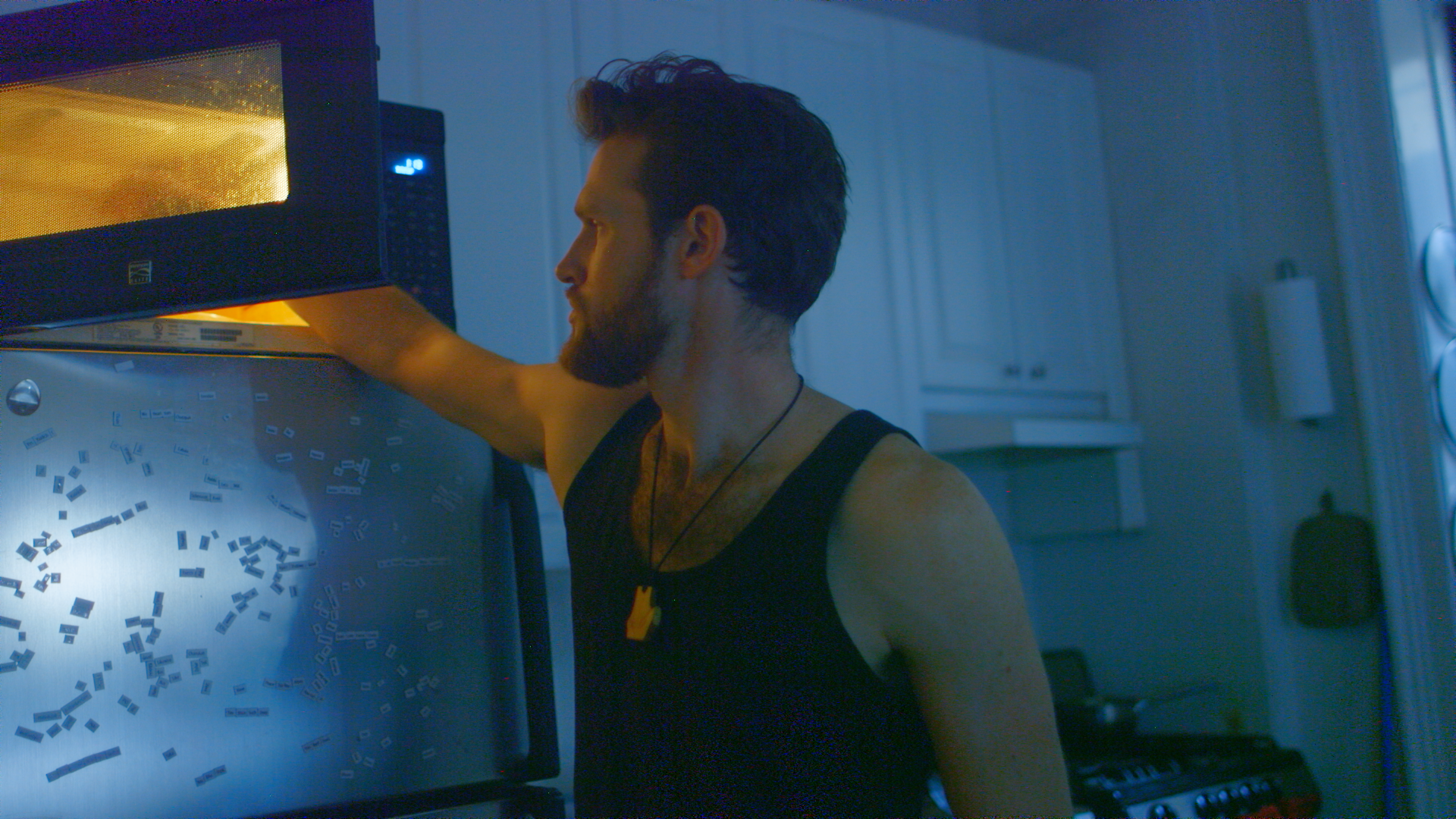
The illustration above is an existing graded detail from RGBA's examples. It is not presented as AI-generated footage or as proof that your clip will improve. Use your moving preview for that decision.
Try a free preview with your RGBA account. Check your remaining allowance and the current limits before processing. Try a supported clip and review current limits. Before paid processing, review the displayed quote and billing terms. Test the output in your actual editor; Final Cut Pro compatibility remains unverified.
Frequently asked questions
Can I convert AI-generated video to ProRes for grading?
Supported Rec.709 SDR exports can use RGBA's available upgrades. Compatibility depends on the actual file, including its encoding and frame rate. Test a short preview before processing more footage.
Does a 10-bit or 12-bit output guarantee a better image?
No. Output precision is a file property. Compare the original and enhanced result under the same intended grade, in motion and in a representative delivery export.
Will enhancement fix mistakes in a generated subject?
RGBA is not a tool for correcting a character's anatomy, replacing an incorrect object or repairing the story of a generated shot. Revise the source when the content itself is wrong.
Do I need to upscale the clip to test its grading quality?
No. Eligible clips can use higher-precision output at the original size. Keeping the size unchanged makes the initial comparison easier to assess; inspect the available options for your file.